Contact support ↗

Hosting an Event

Create events, manage registrations, claim agreed expenses and protect attendee data.

Who can host, and how do I apply or get access?

Who can use this feature?

Requires an active GrowthX membership.

Check your GrowthX membership.

Primary hosts must be active, badged GrowthX members in good standing. Start with Create event and sign in with your member account.

Prepare a clear event idea: who it is for, what attendees will do or learn, the format, proposed date and venue, and any ticket price or costs. Every event is reviewed by GrowthX before it is published. You will be asked to accept the Host Club Terms before you can submit.

If you cannot access event creation, use Report an issue with your idea and the message you see. Having an idea or starting a draft does not establish approval.

You can involve an external guest or co-host, but a designated GrowthX member host must stay for the entire event and remains responsible for its content and conduct. Read the Host Club Terms before committing to host.
What should I plan before I create an event?

Start with one clear attendee outcome and the specific audience the event is for. Then choose the smallest format that can deliver that outcome: a workshop, discussion, panel, meal, social gathering, online session or another well-scoped experience.

  • Programme: define the agenda, speakers or facilitators, preparation, run of show and a realistic start and end time. If you combine content and networking, give each a clear place in the agenda.
  • Venue and production: confirm capacity, accessibility, arrival instructions, setup and cleanup, A/V, Wi-Fi, power, catering rules, cancellation terms and an on-site contact. For an online event, test the joining link and moderation plan.
  • Registration: decide who can attend, whether approval is required, the capacity, price and inclusions, registration questions, and any guest allowance.
  • Team and budget: assign the primary host, co-hosts, speaker contact, check-in and A/V responsibilities. Budget the full event; GrowthX reimbursement requires a separate written agreement in advance.

Put these details into Create event so attendees can decide whether the event is right for them. Do not promise a venue, speaker, reimbursement or attendee benefit that is not confirmed.

What event formats and agendas work best?

Choose the smallest format that can deliver one clear attendee outcome.

  • Workshop: use it when attendees should practise or leave with something made. Keep instruction short, protect working time and state what people must bring.
  • Discussion or roundtable: use it for a specific peer group and a question that benefits from several perspectives. Keep the group small enough for everyone to contribute.
  • Panel or fireside chat: brief speakers on the audience and questions, protect audience Q&A and do not let introductions consume the session.
  • Meal or social gathering: make connection the explicit outcome and explain seating, food inclusions, payment and guest policy before registration.
  • Demo, showcase or hackathon: define the prompt, feedback or judging process, equipment, submission rules and timeboxes.
  • Online session: keep it shorter, test the joining link, name a moderator and plan audience participation.

If content and networking are combined, run the promised content first and give networking a clear start and end. Publish the real agenda; do not advertise a workshop when attendees will only watch a talk.

How do I create an event and submit it for review?

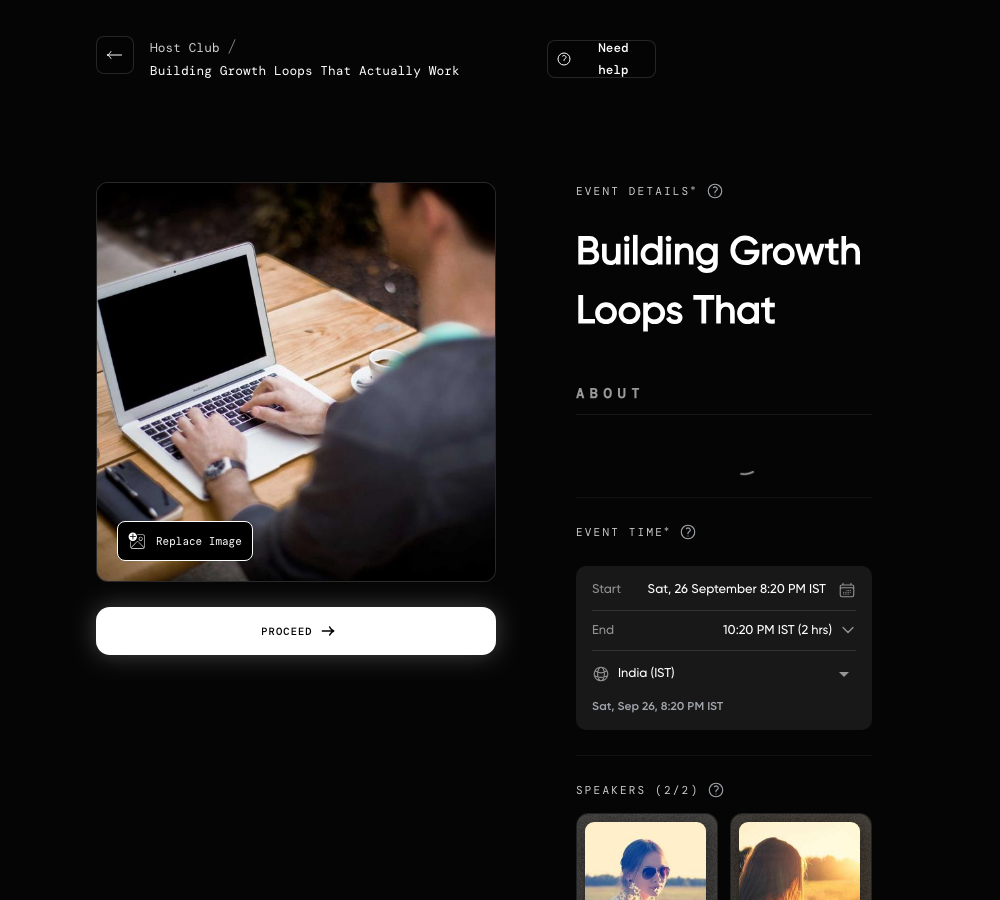
Open Create event, choose the closest category and complete the event form. Describe who the event is for, what attendees will do or learn, and the format. Add the date and time, venue or online link, capacity, access, price and inclusions, agenda, image, speakers, registration questions and any co-hosts that apply.

  1. Preview the listing: check it as an attendee would, including the total price and any extra venue, food, drink or equipment costs.
  2. Submit the event: finish the review step and submit. The success screen shows the event and its current status; a draft is not a published event.
  3. Edit later: use Edit event from the management area. If people have registered, communicate any material date, time, venue or access change through the approved event channel as well.

Every event is reviewed by GrowthX before it is published. You cannot submit until the required details are complete, and GrowthX may ask for changes. For a repeat format, you may use Duplicate event as a starting point, but check every edition’s date, venue, price and registration details before submitting it.

The GrowthX event creation form showing event details, time and speakers

How do I add co-hosts and control their access?

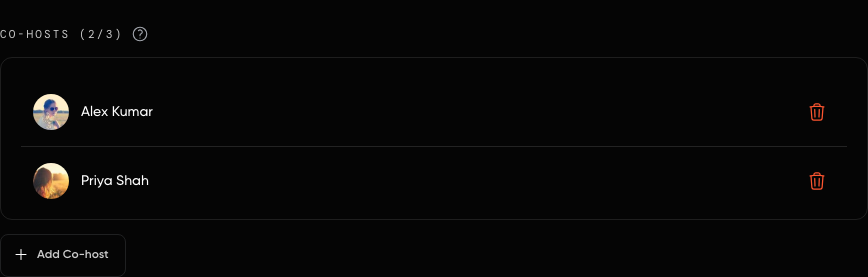
Add GrowthX member co-hosts while creating or editing the event, or from its management controls. Search for the member, add them, and confirm that the right people appear before you hand over any work.

  • Access: each co-host must use their own account. Co-hosts can edit the event and use all host controls.
  • Removal: remove someone when they no longer need access. This removes their management access.
  • Responsibility: give access only to people actively running the event. A designated GrowthX member host must remain present and responsible for the event’s content and conduct.

You may involve an external speaker or collaborator without giving them host access. If a GrowthX member cannot be found or access is wrong, use Report an issue with the event link and the person who needs access.

The GrowthX event form showing two co-hosts and the Add Co-host control

What venue, production and accessibility checks should I complete?

Confirm the operational details in writing before publishing a venue as final or making a non-refundable commitment.

  • Capacity for the planned layout, address, entrance, floor, lift or stair access, bathrooms and accessible route.
  • Setup and teardown windows, furniture, sight lines, sound restrictions, security, lost-property process and the on-site decision maker.
  • Microphones, display, adapters, clicker, power, Wi-Fi and a tested fallback for every essential item.
  • Catering rules, dietary collection, final-headcount deadline, water, waste and what the ticket price includes.
  • Arrival instructions, parking or public transport, building access and any ID requirement attendees must know.
  • Emergency exits, first-aid point and who can make a venue decision during an incident.

For an online event, replace the venue checks with host permissions, waiting room, captions, moderation, recording choice and a backup host. Update the GrowthX listing and attendees if a material access detail changes.

How should I brief speakers, assign the team and build a run of show?

Give every person one named responsibility and use one source of truth for timing.

  • Send speakers the audience, outcome, format, duration, arrival time, preparation, recording choice and the questions or topics you expect to cover.
  • Build a minute-by-minute run of show for load-in, doors, welcome, programme, breaks, Q&A, networking and close.
  • Name owners for venue, speaker care, check-in, A/V, facilitation, photography and one floater who can solve problems.
  • Put contact details and decision points in the host copy. For an in-person event, you can add a Phone number for attendees when you create or edit it; only confirmed attendees of that event see it.
  • Reconfirm speakers one week before and again the day before. Keep an agenda that still works if a speaker is late or absent.

Hold a five-minute team huddle before doors open. Confirm who starts on time, who handles a queue or technical failure and who contacts GrowthX if an incident needs escalation.

How do I choose ticket prices and explain what is included?

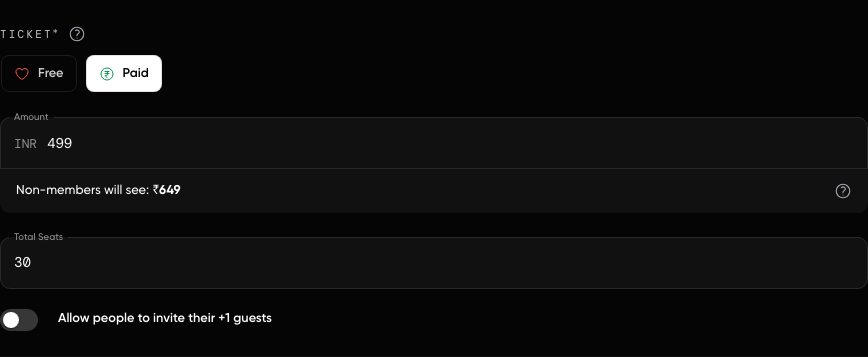
Set a clear total attendee price and explain exactly what it covers. State whether food, drinks, equipment or venue charges are included or paid separately.

  • Also listed elsewhere: the GrowthX total price, including fees, must be at least 30% below the lowest external total price for the same or a substantially similar event. Include a verifiable external listing with your proposed price for review.
  • Exclusive to GrowthX: you choose the price, subject to the other hosting terms. The external-price discount rule does not create a requirement to list it elsewhere.
  • Every paid event: submit it for GrowthX review before publication and accurately declare whether it is for profit or not for profit.

Fees and payout: GrowthX keeps a 5% platform fee on ticket revenue, and payment-gateway charges are also deducted. Your net payout is started within 14 business days after the event.

Budget for the full cost of running the event and the applicable fees. Do not assume GrowthX will cover a shortfall or reimburse expenses: additional funding needs a separate written agreement in advance. Check the Host Club Terms for fees, discounts and reimbursement conditions before setting your price.

The GrowthX event ticket controls showing paid pricing, seat count and plus-one setting

How do reimbursements work, and what receipts and deadlines apply?

Get a written agreement from GrowthX before incurring any cost you expect GrowthX to reimburse. Hosting an event does not by itself make venue, catering, travel, production or other expenses reimbursable. Ask for the agreement in your event's thread in #host-club.

  1. Open the event’s management area and select Reimbursements.
  2. Add each agreed expense with the amount, description, invoice or receipt, and proof of payment requested by the agreement.
  3. Complete the connected-account setup for the bank or UPI account that should receive an approved reimbursement.
  4. Submit everything by the deadline in the written agreement and check the recorded status.

Saving an expense is not confirmation that it has been approved or paid. If the event does not show Reimbursements, or the agreement and product disagree, use Report an issue before spending more.

How should I handle sponsors, external vendors, photography and recording?

All event sponsorships must go through GrowthX. If you have a potential sponsor, share the introduction or proposal with the GrowthX team in your event's thread in #host-club before making any commitment. Hosts must not independently agree sponsorship terms, accept sponsorship money or promise branding, promotion or attendee access.

The attendee experience and GrowthX standards stay the host’s responsibility when a vendor or another organisation helps.

  • Agree the vendor’s role, deliverables, access, cost, payment terms, cancellation terms and on-site contact in writing.
  • Do not imply that a venue or vendor is endorsed by GrowthX unless GrowthX has explicitly approved that claim.
  • Keep promotion proportionate to the event attendees registered for; registration data cannot be handed to a sponsor or vendor for marketing.
  • Tell attendees before the event if photography or recording is planned and offer a practical way to avoid identifiable photography where the format allows it.
  • Give photographers only the access needed for the job. Get permission before publishing a person’s quote, close-up, presentation or confidential material.

If a vendor must process attendee information for an operational reason, confirm the approved privacy arrangement with GrowthX before sharing anything.

How do I manage approval requests, capacity and registration status?

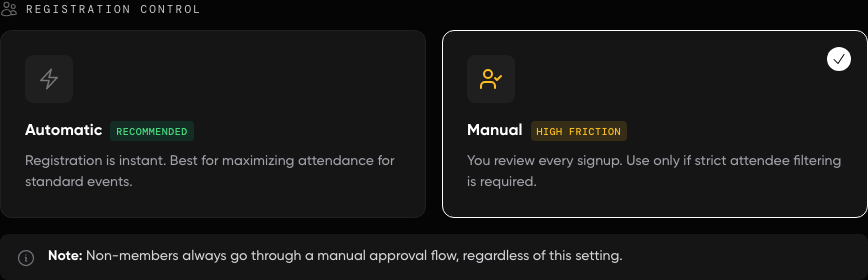
Open the event’s management area and select Registrations. Search or filter the list, open a request to review its answers, and record the decision there.

  • Pending request: approve or reject it against the audience, access rules and capacity stated in the event listing.
  • Approved or registered: the person has a confirmed place, subject to any remaining payment or instruction shown.
  • Pending: the person does not have a confirmed place until you approve them. Keep the official status current instead of confirming anyone only in a private message.
  • Capacity: monitor registrations against the event limit and do not promise a place the product has not confirmed.

Approve or reject requests promptly enough for people to plan. If the event is full or a status change fails, do not create a second registration or collect payment outside the event flow; use Report an issue with the event and registration details.

The GrowthX registration control showing automatic and manual approval choices

May I export, share or use attendee information for marketing or sales?

No. Attendee information is provided only to manage the specific event they registered for. You can use it for relevant event instructions, access links and promised materials.

Do not put the attendee list into a personal or third-party CRM, newsletter or sales funnel; sell or share it; or contact attendees about unrelated products, services or future campaigns. Registering for an event is not consent to receive your marketing.

Use only the details needed to run the event and handle them carefully. The Host Club Terms specify an immediate, permanent hosting ban for violating these data rules. If a proposed use falls outside running that event, do not use the list for it.

Which channels can I use to contact attendees, and where do their questions reach me?

Send a blast from Manage event. Open the Blasts tab, write your blast and select Send, or Schedule to choose when it goes out. Under Recipients, tick who it goes to: Approved, Pending approval, Attended, Rejected or Opted out, the same groups as your Registrations tab. Approved and attended people get it by email and it stays under Updates on the event page; pending, rejected and opted-out people get it by email only. In the app, use Blasts on the event's host dashboard. Keep communication tied to the event people registered for.

  • Before the event: share arrival instructions, preparation, access details and confirmed changes.
  • After the event: share promised materials. For feedback, show the Feedback QR before people leave, or copy the feedback link from the Feedback tab.
  • Questions from members: a member can open your profile from your event page and message you before they register. Those messages arrive in Messages with the event quoted at the top, and your reply goes back to them there. Answer them while the event is still open; a question answered in time is often the difference between a maybe and a place taken.
  • If the usual channel is unavailable: contact the GrowthX team through Report an issue with the event link, the update and when attendees need it.

Do not add attendees to an external group or mailing list, or start an unrelated sales sequence using their registration details. For a time or venue change, coordinate the update so the event listing and attendee instructions agree.

How should I promote my event and plan for no-shows?

The host is responsible for giving the right audience a clear reason to register and enough information to attend. Start only after the event is live, share its GrowthX link, and use the event’s GTM guidance and approved GrowthX channels.

  1. Explain the audience, outcome, format, speakers and practical details instead of posting a generic event announcement.
  2. Ask confirmed co-hosts and speakers to share the same live event link. Keep the title, date, venue and price consistent everywhere.
  3. Monitor the Registrations view. Send blasts from Manage event for relevant reminders, preparation, arrival details and confirmed changes.
  4. Close to the event, ask registered attendees to release their place early if they cannot attend. Plan catering and room setup from the event’s current registrations and your own confirmed costs, not an unverified universal no-show rate.

Do not add registrants to a CRM, newsletter, WhatsApp group or sales sequence, and do not use their details to promote unrelated events. Registration is consent for communication about that event only.

What should I complete four weeks before the event?

Lock the event intent, attendee outcome and feasibility before you spend money or announce it.

  1. Define one attendee outcome and choose the format that best delivers it.
  2. Set the precise audience, capacity and attendance target.
  3. Shortlist a venue and confirm capacity, accessibility, A/V, catering rules, load-in and cancellation terms.
  4. Choose the proposed date and check the GrowthX event calendar for obvious conflicts.
  5. Identify co-hosts, speakers or collaborators whose role improves the experience.
  6. Draft the full budget for venue, catering, production, design, photography, staffing and contingency.
  7. Get written GrowthX agreement before relying on reimbursement or making a binding, non-refundable commitment.
  8. Align everyone funding or operating the event on the goal, budget, responsibilities and success measures.

What should I complete three weeks before the event?

Turn the approved idea into a complete event page and confirmed operating plan.

  1. Get the venue’s layout, setup and teardown, A/V, catering, Wi-Fi, accessibility and emergency contact details in writing.
  2. Confirm speakers and send the date, time, format, duration, audience and preparation requirements.
  3. Complete the GrowthX event page with the outcome, agenda, capacity, location, price, inclusions, registration questions and access rules, then submit it for review.
  4. Confirm ticket price, inclusions, approval rules and capacity before registration opens.
  5. Create the run of show for doors, welcome, programme, breaks, networking and close.
  6. Assign owners for check-in, A/V, facilitation, speaker care, photography and on-site problem solving.
  7. Confirm microphones, display, adapters, clicker, Wi-Fi, power and any streaming setup.
  8. Decide whether photography or recording is needed, who will handle it and how attendees will be informed.

What should I complete two weeks before the event?

Launch the go-to-market (GTM) plan and build registration momentum with clear, useful communication.

  1. Publish only after the event page, registration settings and attendee promise are accurate.
  2. Prepare the event cover, speaker assets and channel-specific copy using the live GrowthX event link.
  3. Plan promotion through relevant approved GrowthX and community channels without adding people to unrelated groups or lists.
  4. Give speakers and co-hosts a concise sharing kit with the audience, outcome, date and registration link.
  5. Monitor registration pace and improve the positioning, audience explanation or speaker proof if interest is soft.
  6. Answer recurring registration questions on the event page so every attendee sees the same information.
  7. Send one useful reminder through approved channels instead of repeated generic promotion.
  8. Track capacity, approvals and declines in Registrations so promotion stops or changes when the room is full.
  9. Confirm catering and its final-headcount deadline.

What should I complete in the final week?

Reconfirm every dependency and make the attendee instructions unambiguous.

  1. Send a one-week reminder with the date, time, address or joining link, expectations and preparation.
  2. Recalculate expected headcount and make permitted catering or room adjustments.
  3. Walk the venue and check sight lines, A/V, bathrooms, accessible access, power and load-in.
  4. Reconfirm speakers personally and resend the run of show.
  5. Test the microphone, display, slides, streaming, adapters and a low-tech fallback.
  6. Finalise minute-by-minute timing and share it with the team and speakers.
  7. Set up the GrowthX check-in flow and allocate enough door support.
  8. Brief staff and volunteers on roles, venue layout, conduct and escalation.
  9. Ask registrants to release their place if they cannot attend; keep official registration status current.
  10. Prepare the welcome slide, Wi-Fi details, house rules and directional signage.

What should I complete the day before and on event day?

Protect the promised experience by testing the complete path before attendees arrive.

  1. Send a concise final message with address or link, arrival time, start time, access details and preparation.
  2. Reconfirm every speaker the day before; pre-load presentations and keep offline backups.
  3. Charge laptops, check-in devices, microphones and power banks.
  4. Arrive 90–120 minutes early, or earlier when the venue and production plan require it.
  5. Set up check-in and signage without blocking the entrance or accessible route.
  6. Test the complete microphone, display, adapter, Wi-Fi and streaming path.
  7. Hold a five-minute team huddle and walk speakers through the format and timing.
  8. Open doors and start at the promised time unless safety prevents it.
  9. Capture photos only under the event’s stated photography approach.
  10. Monitor the room, queues, energy and timing; make the smallest adjustment that protects the outcome.
  11. Remove materials, check lost property, thank the venue team and close any deposit or handover process.

What should I complete in the 72 hours after the event?

Close the operational loop while the event is still fresh.

  1. Thank attendees within 24 hours and share promised resources.
  2. Publish a concise recap or takeaways when useful and permitted.
  3. Thank and acknowledge speakers and collaborators accurately.
  4. Before people leave, show the Feedback QR from the Feedback tab in Manage event. GrowthX also reminds attendees who haven't answered, once near the end and once the next morning.
  5. Attendance can only be marked from 30 minutes before the start until the event ends. For corrections after that, send GrowthX support the event link and the correction. Do not export attendees to a CRM or marketing list.
  6. Share recordings or slides only after confirming the necessary permissions.
  7. Follow up personally with meaningful connections only where the relationship and consent support it.
  8. Debrief the team and record what to repeat or change.
  9. Reconcile actual spend, receipts and any pre-agreed reimbursement submission.
  10. Close remaining attendee questions, incident follow-up and GrowthX reporting connected to the event.

How do I check in attendees and correct attendance records?

Open Manage event and select Registrations. Near the event, use the QR check-in option so registered attendees can scan and record their attendance, or find a person in the registration list and mark attendance manually.

  • Before doors open: test the check-in device and internet connection, and keep the Registrations list available as the fallback.
  • At the door: match each person to their own registration. A guest or shared ticket should not be recorded under someone else’s name.
  • Timing and corrections: you can mark attendance from 30 minutes before the start until the event ends, and a mark cannot be undone in the product. For a correction, use Report an issue to send the event link, registration and exact correction needed.

Keep attendance and contact details out of public community posts.

What should I do if a speaker, venue, supplier or technology fails?

Protect people first, communicate confirmed facts and use the simplest fallback that still delivers a worthwhile event.

  • Speaker absent: start with the welcome or networking block and switch to the pre-planned discussion, Q&A or shorter agenda if needed.
  • A/V failure: use the tested spare adapter, offline deck or microphone-free setup. Do not hold the room indefinitely for a non-essential presentation.
  • Venue access problem: contact the on-site owner. Do not redirect attendees to an unconfirmed location; cancel or reschedule if safe access cannot be restored.
  • Catering delay or shortage: protect dietary and safety requirements, tell attendees what is confirmed and agree the vendor remedy after the immediate experience is stable.
  • Unexpected crowd or queue: do not exceed safe capacity. Pause entry, use the official registration list and escalate when needed.
  • Low turnout: run the promised experience for the people present and adapt exercises or seating without exposing registration data.

For a medical, safety, harassment or security incident, contact the appropriate emergency or venue service first. Record only necessary facts, follow the GrowthX support path and keep discussion of the incident with the GrowthX team.

How do I cancel or reschedule, report an incident or request urgent help?

Tell the GrowthX team as soon as a cancellation, reschedule or material change looks likely. Post in your event's thread in #host-club, or use Report an issue. Include the event link, scheduled start time, reason and proposed next step.

  • Cancel or reschedule: explain what has changed and whether you have a confirmed alternative. Coordinate the event listing and attendee message so the date, venue and instructions agree. Do not assume editing the listing has notified everyone.
  • Immediate safety issue: involve venue staff or local emergency services as needed, then notify GrowthX. Do not wait for an online support reply to get urgent help.
  • Conduct issue or removal: protect attendees and report the incident privately to GrowthX, including what happened and any action taken. Hosts must report attendee removals.

The Host Club Terms treat repeated or last-minute cancellations within 48 hours, without a verifiable emergency reason, as a serious breach that may affect hosting privileges. Contact the team early rather than leaving attendees to discover a change on arrival.

What follow-up, feedback and community responsibilities remain after the event?

Close the loop with attendees and finish the event's records. A useful follow-up delivers what you promised and identifies what to improve next time.

  1. Check attendance records and flag any incorrect check-ins or registration details through the event's support route.
  2. Share promised slides, links or other material through the event channel. Only share material you have the right to distribute.
  3. Review attendee feedback. Follow up on a specific unresolved problem with the GrowthX team rather than treating a feedback form as an urgent support channel.
  4. If you have an agreed expense reimbursement, submit the detailed invoices and proof of payment required by that agreement. Expenses are not automatically reimbursable just because the event took place.

Respect photography preferences and the Host Club Terms on materials and recordings. Do not reuse attendee details for unrelated outreach or future marketing.

How do I see who visited my event page and where they came from?

Open your event, select Manage event, then the Analytics tab. Only the event's host and co-hosts can see it.

At the top:

  • Page visitors: how many people opened your event page.
  • Registrations: everyone registered, split into the website and the app.
  • Page views: every time the page was opened.
  • Registration rate: of the people who opened your page, the share who registered.

Below them, a chart shows visitors and registrations each day, or each week with Weekly, with your event day marked. Then:

  • Where visitors came from: grouped into sources such as GrowthX short links, Social and Paid ads. Select How we sort visitors by source to see what each one means.
  • Phone or computer: the device each person first opened your page on.
  • Link tags: the utm tags on the links people clicked, so you can see which of your links worked.

To see which posts bring people in, add utm tags to the links you share. Source (utm_source) is where you shared it, medium (utm_medium) is the kind of link, like post or email, and campaign (utm_campaign) is the push it belongs to. For example, growthx.club/events/your-event?utm_source=linkedin&utm_medium=post.

The numbers refresh every 6 hours and count visits on growthx.club, not inside the GrowthX app. Analytics cover approved events that start in the next 60 days or started in the last two years, so a newly approved event shows up after the next update.

Patience—you’re about to be impressed.