How do I use the lesson player?
Open a lesson from a course or deep dive, then press Play. Move your pointer over the video, or tap it on a touch screen, to reveal the playback controls.
- Use Play/Pause to stop at an idea you want to think through. Drag the progress bar to revisit a moment.
- Adjust the volume or mute the video. Use the full-screen control when you want a larger view.
- Open the player's speed control to slow down a demonstration or move faster through familiar material.
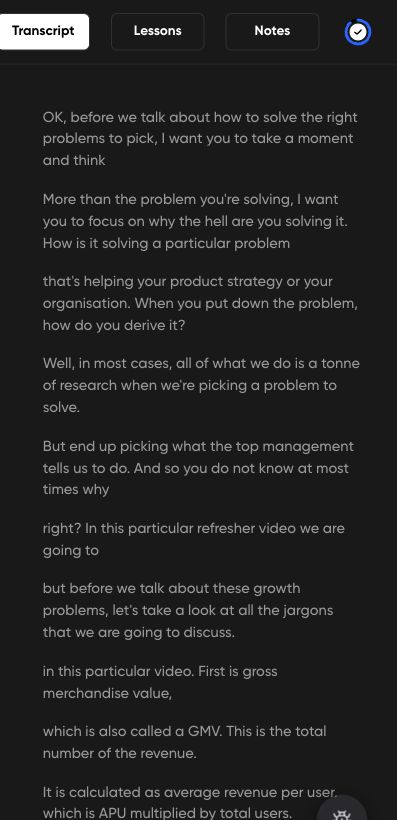
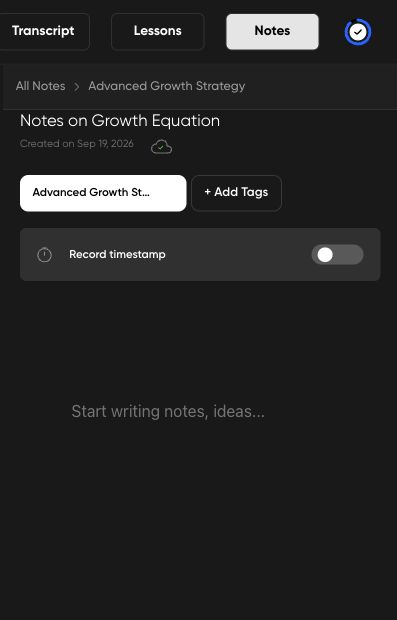
- Use Lessons to move through the course. Open Transcript to follow the spoken content, or Notes to capture your own takeaways, when those options are shown.
On smaller screens, the supporting panels may be collapsed or appear as tabs rather than beside the video. Available controls depend on the lesson and player. A transcript, captions or Ask AI will not appear on every recording.