Contact support ↗

Online community handbook

Posting, comments, clubs, direct messages, the app and the norms that keep the community useful.

How the community is organised

The member community lives on GrowthX at growthx.club/community and in the GrowthX app. It no longer uses Slack, and an old Slack invitation does not restore access. Sign in with the account linked to your membership.
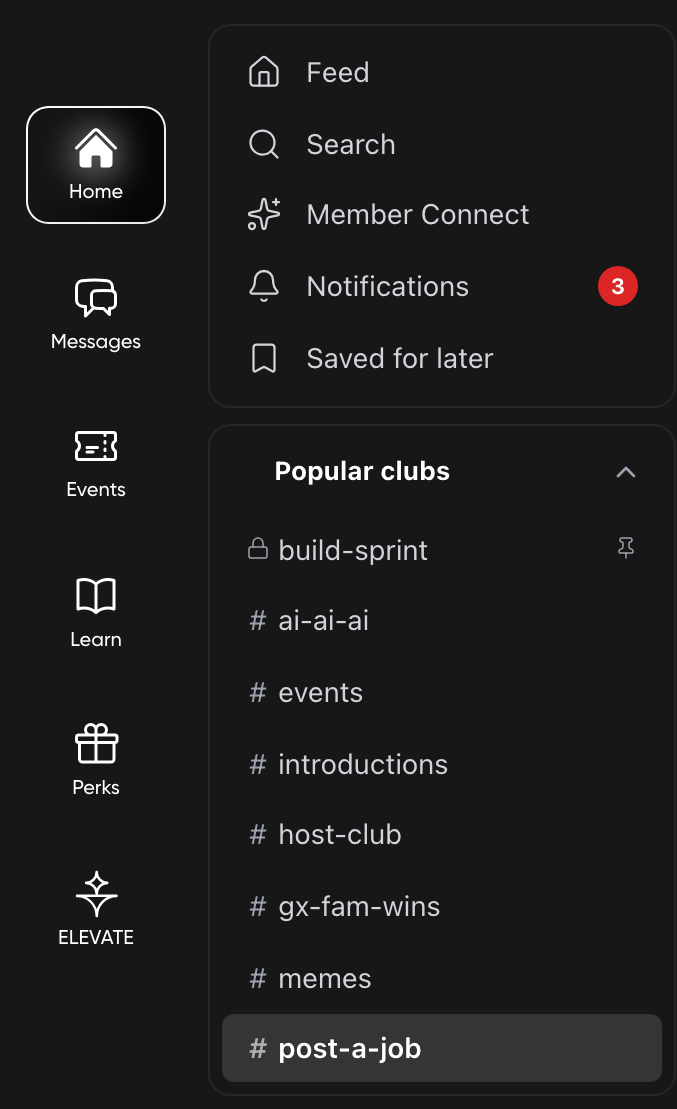
Community Home on desktop: the left icon rail with Home, Messages, Events, Learn, Perks and ELEVATE, the sidebar with Feed, Search, Member Connect, Notifications, Saved for later and and the Popular clubs, City clubs and My clubs lists.

The three layers

  • Icon rail (far left): Home, Messages, Events, Learn, Perks and ELEVATE.
  • Sidebar: Feed, Search, Member Connect, Notifications and Saved for later. Below them are the Popular clubs, City clubs and My clubs cards. Drag the cards to reorder them, or right-click a club and use Create new section to group clubs your way.
  • Feed: Home shows posts from across the community, with a composer that reads What's on your mind?. On a wide screen, upcoming events sit on the right, with your karma below them.

Your avatar opens the Account menu: Profile, Karma, Settings, Keyboard shortcuts, Report a bug, Roadmap and a Light / Dark / System theme switch.

Before you post a question, press Cmd/Ctrl+K or use Search to check for an existing discussion. If your membership has expired, the feed fades out and shows Renew membership.

Next: join the clubs that match your work and city.
Join the right clubs

A club is a space for one topic or city. When you join, you are added to eight clubs automatically: member-connect, home, ai-ai-ai, introductions, gx-fam-wins, memes, events and post-a-job. Anything you post from Home goes to the home club.

ClubUse it for
#introductionsIntroducing yourself to the GX Fam
#member-connectAsking for introductions and help, in the ask → context → perks format
#ai-ai-aiBuilding with AI out loud and showing how
#gx-fam-winsMilestones only. No promos, hiring posts, discount codes or link drops
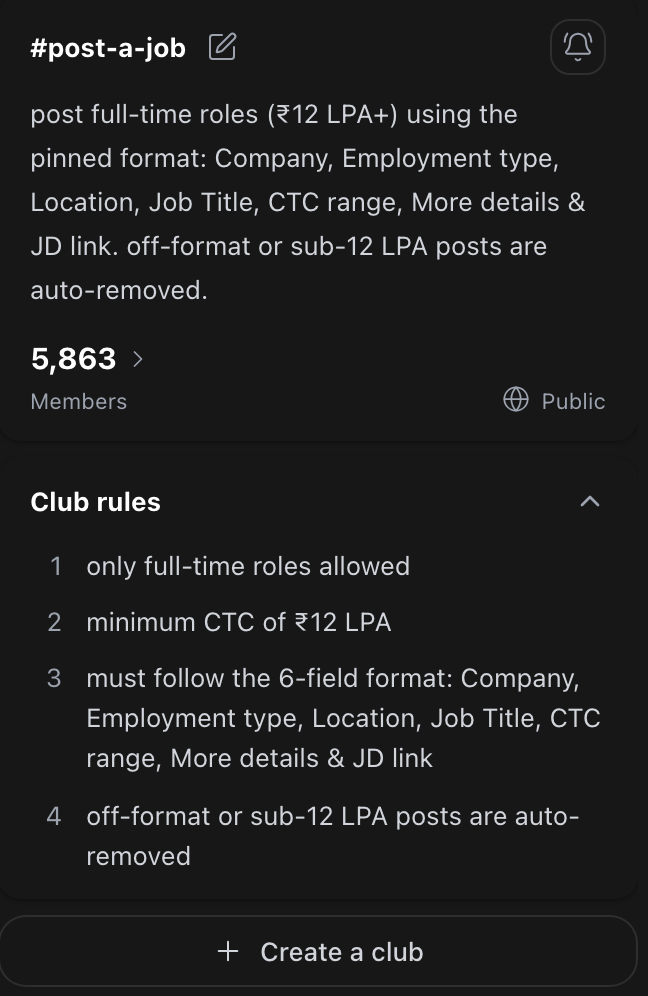
#post-a-jobFull-time roles at ₹12 LPA or more, in the pinned format
#host-clubEvent hosts: one thread per event, reviews, reimbursements and recaps
#memesHumour

To find your city, open City clubs in the sidebar (it starts closed). There are 17, such as #bangalore-macha, #mumbai-ki-janta and #delhi-ncr-ke-log. Open a club and select Join club. You will see Joined club when it works.

Each club has Club info, which shows its description, Club rules, members and pinned posts. Read the rules before your first post there. You cannot join a private club yourself. A club admin has to add you.

You can't leave a club yourself at the moment. To stop hearing from one, right-click it and choose Muted, or pick a time under Mute for.

Start a private club

Who can use this feature?

Requires an active GrowthX membership.

Check your GrowthX membership.

Any active member can create a private club for a group that needs its own space.

  1. Open any club's Club info panel and select Create a club.
  2. In Step 1 of 2 · Name & visibility, enter a name of up to 30 characters. You will see Club name available or This name is already in use. Please choose a different name.
  3. Choose Private ("Only invited members can see and join."). Public clubs are not open to members yet.
  4. Select Next. In Step 2 of 2 · Description & rules, add a description (up to 250 characters) and rules (up to 500 characters).
  5. Select Create club. You become the club's admin.

Note

There is no invite link or request-to-join flow. To add people, open Club info, open the members list and use Search members, or find someone to add…. People already in the club appear under In this club.

Tip

Next: write the club's first post so new members know what it is for.

Complete your profile before you post

You cannot post or comment until your profile has a photo, your name, a title, and a LinkedIn or X link. If something is missing, the composer shows Complete your profile. Select Complete profile and follow the steps it lists.

To edit your profile at any time, open Profile from the Account menu and select Edit. The Edit profile window has three steps: Profile photo, Basic information and Socials & bio.

  • Display name is how others see you. Name comes from your GrowthX account.
  • LinkedIn is required. Twitter / X is optional. Bio takes up to 500 characters.
  • Your role and company come from your GrowthX experience. Use Edit on GrowthX to change them.

Your phone number is never shown by default. Choose how members can see it:

  • Protected access: members agree to the contact policy, every view is logged and you are notified.
  • Approval required: you approve each request before your number can be viewed.

Select Save changes. The phone on your community profile is not the number you sign in with. To change that, see Account and privacy.

Write a post that gets answers

Post in the closest club. Open it and use its composer, or press Cmd/Ctrl+N for New post.

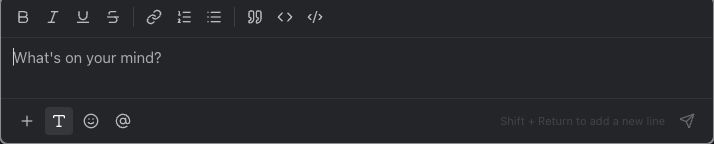
The New post composer with the Formatting bar open, showing Bold, Italic, Underline, Strikethrough, Link, lists, Blockquote, Code and Code block, and the toolbar with Attach, Formatting, Emoji and Mention.

  • Formatting gives you Bold, Italic, Underline, Strikethrough, Link, lists, Blockquote, Code and Code block. A code block shows a Copy button, so anyone can copy what is inside in one click. A line starting with - or 1. starts a list.
  • Type @ and a name to mention a member. They are notified. Type # to link a club.
  • Drafts save automatically. A club with an unsent draft shows Draft in the sidebar.
  • Press Cmd/Ctrl+Enter to publish. Esc discards and closes the composer.

What makes a post easy to answer

Share the problem, the context, what you have tried and one clear ask. For example: "New admins at our B2B product leave before inviting their team. We shortened signup, but activation has not improved. Has anyone tested team invitations during onboarding?"

When sharing work for feedback, say who it is for, what you are testing and what you want someone to look at. When looking for collaborators, include the goal, skills needed, time commitment and whether it is paid. Leave out confidential employer or customer details.

Posts pass automatic checks. A post that breaks a club's rules or promotes something may be removed, and you will get a message. When someone helps, reply with what you tried or learned.

Add images, videos and documents

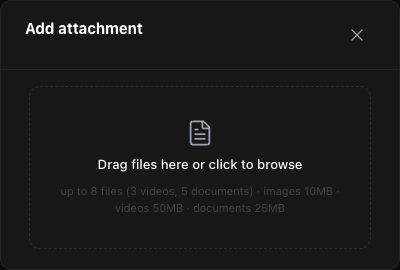
Select Attach (+) in the composer. The Add attachment window opens. Drag files in or click to browse. You can also drop files straight onto the composer.

The Add attachment dialog with the prompt Drag files here or click to browse.

TypeFormatsPer fileHow many
ImagesJPEG, PNG, GIF, WebP. iPhone HEIC photos convert to JPEG10 MBUp to 8 images and videos combined
VideosMP4, MOV, WebM50 MBUp to 3 videos, within the 8 combined
DocumentsPDF, CSV, DOC, DOCX, PPT, PPTX, XLS, XLSX, MD, TXT25 MBUp to 5

PDF and CSV files preview inside the post. Pasting a link shows a link preview.

If a file is refused, check its format and size against the table, then compress or convert it. Only share files you have permission to share.

Next: publish, then watch the thread for replies.

Edit, delete and pin posts

Hover over your post to see its actions.

  • Edit message: change your post, then select Save changes or Cancel editing. Only the author can edit a post.
  • Delete message: confirm Delete this post? with Delete.
  • Copy link to message: copies a direct link you can share with another member.

Club admins, moderators and the club creator can also remove other members' posts, and must give a reason. If one of your posts was removed and you think it was a mistake, see the reporting part of this guide.

Pin message (under More actions) is only for admins, moderators and the club's creator. Pinned posts show in Club info. If you run a club, pin your rules or a posting format there.

Comments, replies and reactions

Hover over any post or comment to see its actions.

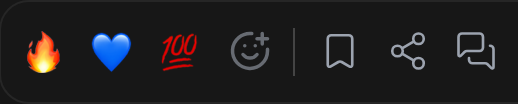
The toolbar that appears when you hover over a post: the fire, blue heart and 100 reactions, add reaction, Save post, Share post and Reply.

  • Reactions: tap 🔥, 💙 or 💯, or use More emojis. Tap a reaction again to remove it.
  • Reply in thread: opens the thread in a side panel. Write in Write a comment.... Turn on also send to #club if your reply should also appear in the club feed.
  • Save for later: keeps the post in Saved for later in the sidebar.
  • Share: copies the link and shows Link copied.

Use the Follow button in a thread to choose All replies (every new reply shows in your notifications) or Muted (no notifications from this thread). By default, your phone buzzes only when someone tags you or replies on your own post.

On a Member Connect ask, the asker can use Mark as answer on the reply that helped. That reply's author earns karma.

Next: if a conversation needs to go one-to-one, send a direct message.

Send direct messages

Who can use this feature?

Requires an active GrowthX membership.

Check your GrowthX membership.

Open Messages from the icon rail. Any active member can message any member. There is no request or accept step.

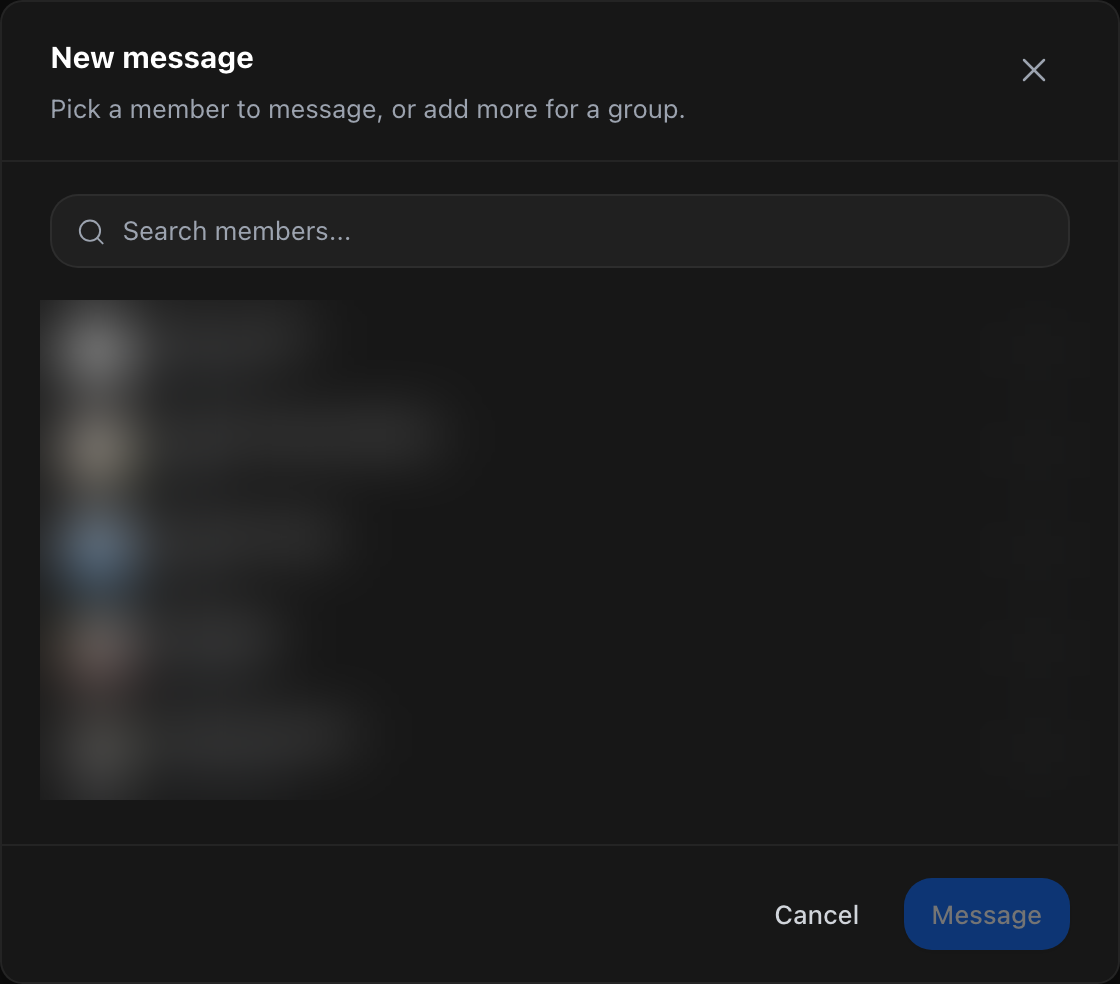
  1. Select + at the top of Messages, or Start a conversation. In New message, type in Search members....
  2. Pick one member and select Message. Or add more people, give it a Group name (optional), and select Create group.
  3. Press Enter to send. Shift+Enter adds a new line.

    The New message window: Pick a member to message, or add more for a group, the Search members field, a blurred list of members, and the Cancel and Message buttons.

You can also select Message on anyone's profile. Messages support threads, reactions, read receipts, editing and deleting. Use Pin to top of inbox for up to 5 conversations. Only you see your pins. Use the All filter and Search messages (at least 2 characters) to find a conversation.

Messaging an event's host

On an event page, select the host under HOSTED BY or Meet your host to open their profile, then use Message the host. You can do this before you register. The event is quoted at the top of the message so the host knows what it is about, the conversation then lives in Messages like any other, and you can send up to 10 of these an hour.

If a member's account is deactivated, the reply box is replaced by a notice.

Asking for a phone number

Numbers show as Phone number protected. Select Request contact info or View contact info, give a reason of 10 to 200 characters, and accept the policy. You can view up to 5 numbers a day and 20 in 30 days. Verified spam, unsolicited sales or harassment ends your membership.

There is no block button for messages. If someone makes you uncomfortable, see the reporting part of this guide.

Control notifications for each club

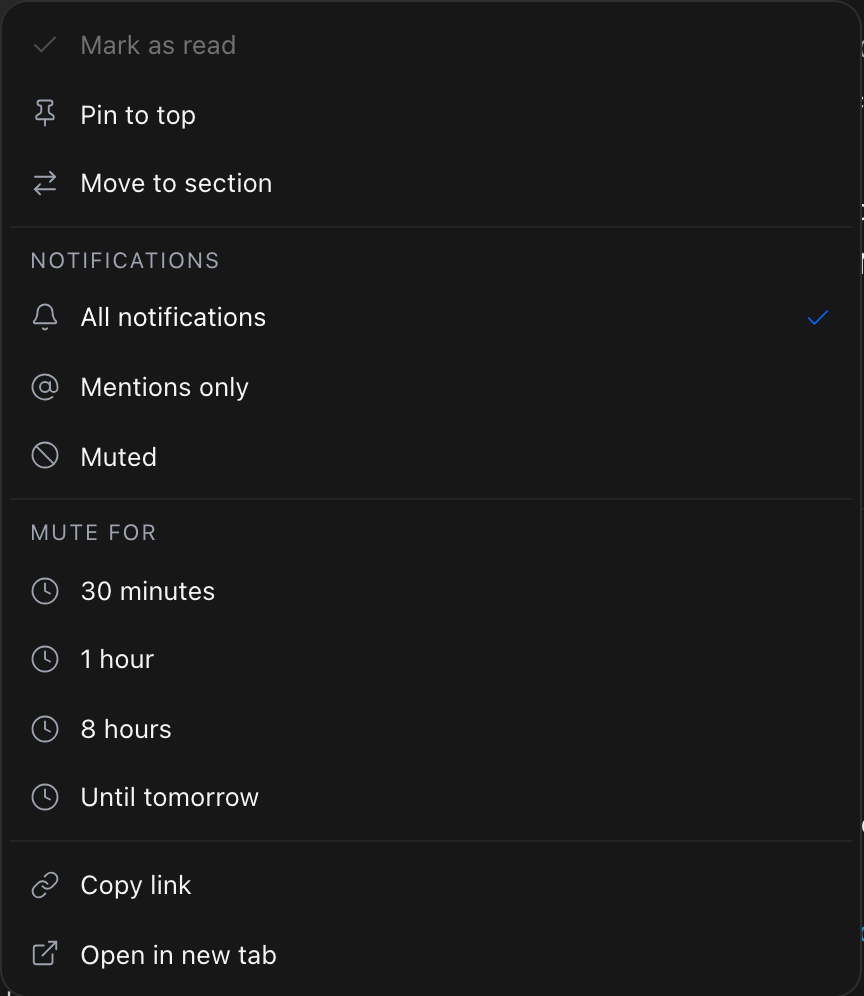
Right-click a club in the sidebar, or open its menu, to set how much you hear from it.

A club's right-click menu showing Mark as read, Pin to top, Move to section, the Notifications choices All notifications, Mentions only and Muted, Mute for 30 minutes, 1 hour, 8 hours or Until tomorrow, Copy link and Open in new tab.

  • All notifications: every comment, reaction and mention.
  • Mentions only: only when you're @mentioned.
  • Muted: no notifications from this club.
  • Mute for: 30 minutes, 1 hour, 8 hours or Until tomorrow. The club then reads Muted until … with an Unmute option.

The same menu has Mark as read, Pin to top, Move to section, Copy link and Open in new tab. You can pin up to 3 clubs. Your pinned clubs also show as tabs on Home in the GrowthX app.

A good default: keep the clubs you care about on All notifications and set busy clubs to Mentions only. Next: set your account-wide preferences in Settings.

Choose your notification settings

Open Settings → Notifications, or the gear on the Notifications page.

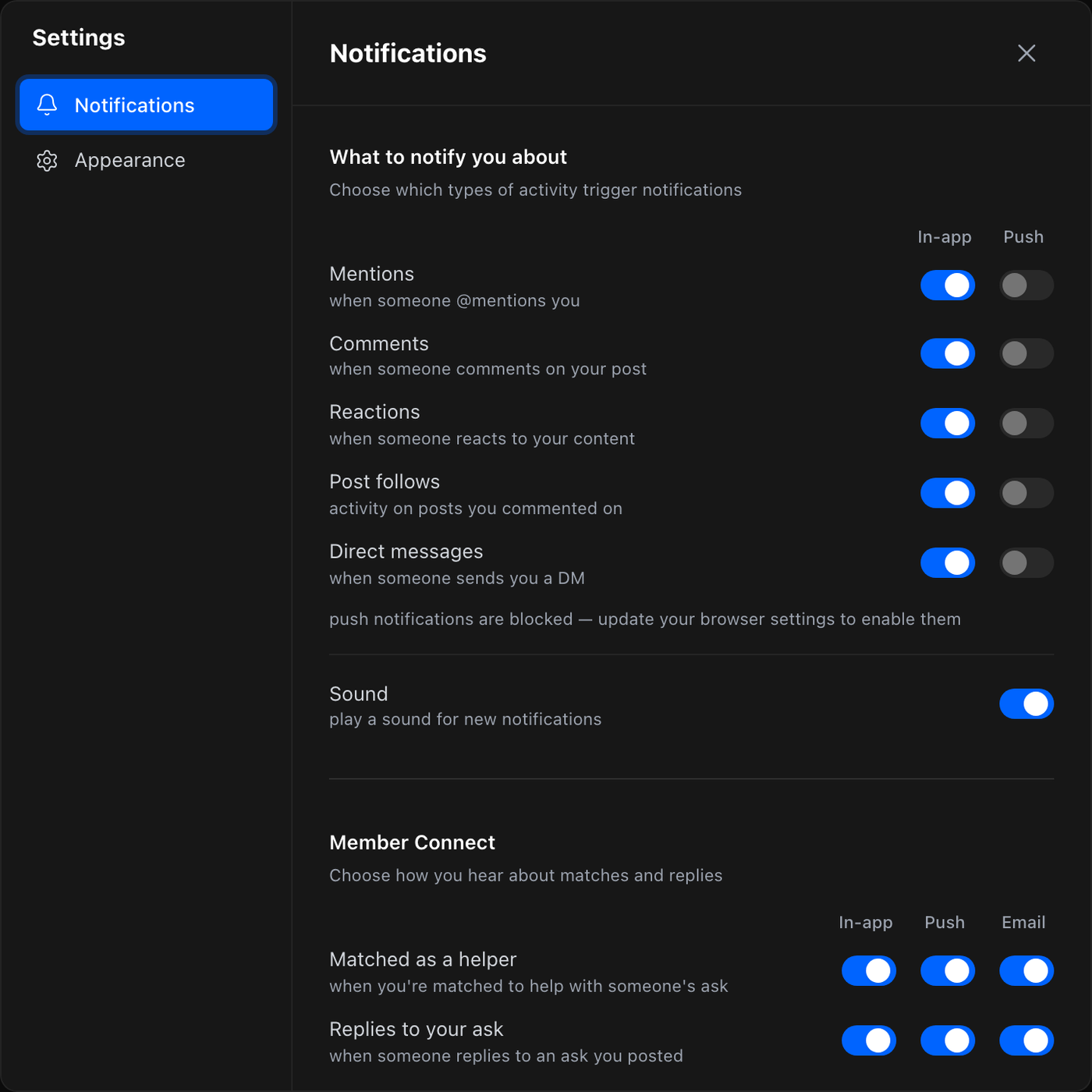
Settings with the Notifications tab open, showing What to notify you about with In-app and Push toggles for Mentions, Comments, Reactions, Post follows and Direct messages, the Sound toggle, and Member Connect with In-app, Push and Email for Matched as a helper and Replies to your ask.

  • What to notify you about: turn In-app and Push on or off for Mentions, Comments, Reactions, Post follows and Direct messages.
  • Sound: plays a sound for new notifications.
  • Member Connect: choose how you hear about Matched as a helper and Replies to your ask. Emails for helper matches and replies to your ask are being sent.
  • Email: Karma you earned turns the Monday email with last week's karma on or off.

To get notifications while the tab is closed, select Turn on when you see Browser notifications are off. If the page says push is blocked, allow notifications for growthx.club in your browser settings. Appearance in the same window sets Light, Dark or System.

The Notifications page in the sidebar lists everything, with filters such as Unread, Mentions and Messages.

Find jobs and hire

All hiring goes in #post-a-job. You are in it from day one, so check it for roles. Do not repeat a job across other clubs or message members about it one by one.

The #post-a-job Club info panel showing the description about full-time roles at 12 LPA or more and the pinned posting format.

The club takes full-time roles at ₹12 LPA or more. Use this format exactly:

Company : …
Employment type : Full time
Location : city / remote / hybrid
Job Title : …
CTC range : range (minimum ₹12 LPA)
More details & JD : link to the full JD

Off-format posts and roles below ₹12 LPA are removed automatically. A CTC of "Competitive" or "Open to proposal" is rejected. If you edit the post, it is checked again.

Next: copy the format, fill in all six lines, and include a real salary range before you publish.

Ask for help in Member Connect

Member Connect is where you ask for introductions and help. Open it from Member Connect in the sidebar.

Post an ask

  • Follow the format: ask → context → perks.
  • Be specific about who can help.
  • One ask per topic.
  • No selling, lead generation, product promotion, beta sign-ups or product recruitment.

Your asks are in My asks. When someone helps, use Mark ask as solved to credit them.

Help others

Asks you can help with shows asks that match your expertise. Reply, Save for later, or Pass on this ask (Undo last pass brings it back).

Karma

Every reply to another member's ask earns 1 karma, and a reply marked as the answer earns 5. In other clubs, your first real answer on a post that asks for help earns 1. Posts and asks earn nothing. Your karma shows on your profile next to LinkedIn, on the home page under Upcoming events, and on your karma page: select your avatar, then Karma. The karma questions further down this section cover the details.

Next: answer one ask you know something about today.

Community norms

The Community Guidelines apply everywhere members meet: the website, the app, direct messages, events and programmes. In short:

  1. No selling. Do not pitch unless someone asked for exactly that. Mentioning your work in context is fine. Selling to members ends your membership, with no warning and no refund.
  2. Be who you say you are. Real name, real photo, one account.
  3. Give more than you take. Ask specific questions and answer generously.
  4. Respect people. No harassment, hate or unwanted attention. If someone asks you to stop, stop.
  5. Respect privacy. No screenshots or forwarding without permission, including into an AI tool. Do not add members to groups, lists or CRMs without asking.
  6. Post things that belong here. No spam, repeat posts or confidential employer information.
  7. Be honest about your work in buildathons and programmes.
  8. Report problems privately. Retaliating against a reporter is a breach.
  9. Consequences range from removing content to ending membership, without a refund.
  10. Changes are announced. Taking part means you accept them.

Hiring goes in #post-a-job. For a partner offer, email [email protected] before promoting it. Posts are checked automatically for completeness, self-promotion and each club's rules. A post that fails can be removed, and you get a message.

Next: read the full guidelines and each club's Club rules before posting.

Report a problem

There is no report or block button on posts, comments, messages or profiles. Report behaviour privately instead.

Behaviour or content

  • Email [email protected].
  • At an event, tell any GrowthX team member if you need help straight away.

Include the post or message link, where it happened, a short description, screenshots, and whether it is still happening. You do not need to argue with the person or repost the incident. Reports are confidential.

Misuse of your phone number

Open your own profile and find Contact activity. Select Report spam or harassment, then Report contact abuse, then Submit report. This immediately blocks that member's future contact requests to you and sends the incident for moderation review.

A moderation decision

Email [email protected] with the notice you received, the decision you want reviewed and what you think was missed. A review does not guarantee a change.

For product bugs, see Troubleshooting and support.

Use the community on your phone

You have two options on a phone.

  • The GrowthX app (recommended). It uses the same account and the same clubs, posts and messages as the web. Members who have not installed it see a banner at the top of Home and every club. Dismissing it hides the banner for 3 days.
  • Your phone's browser. growthx.club/community shows a bottom bar with Home, Connect, Messages and Notifications, and Search at the top.

A few things only work on the web: creating a club and attaching documents. Use a computer for those.

Next: install the app and sign in. The Mobile app guide walks you through it.

How do I earn karma?

By helping other members.

  • +1 for every reply to another member's ask in Member Connect.
  • +1 for your first real answer on a post in any other club that asks for help, for example "anyone know…", "looking for…" or "how do I…". Once per question.
  • +5 when the asker marks your reply as the answer in Member Connect. The asker can mark more than one helper on the same ask.

You also get +10 for rating an event you went to, once per event, up to a week after it ends.

Posts, asks, reactions and replies to your own post earn nothing. In clubs, a reply like "Following", "+1", "Thanks" or only "DM me" doesn't count as an answer.

If you earned karma in a week, we email you on the Monday after with what you earned. Turn it off in Settings → Notifications under Email, or with the unsubscribe link at the bottom of the email.

What does "Helps 3× as often as asks" mean on a profile?

It compares how often a member helps with how often they ask, across every club, since they joined. You'll find it on the Karma tab of any profile, under the member's karma. To open your own on a computer, select the Karma card on the home page, under Upcoming events.

One line sums it up, for example Helps 3× as often as asks or Helps about as often as asks. Under it are the two counts:

  • Helped: the number of other members' questions they replied to with a real answer, in any club. "Following", "+1" or "Thanks" doesn't count, and several replies on one question count once.
  • Asked: the number of their own posts that ask for something: every Member Connect ask, plus posts in other clubs that ask a question or for help.

The totals update every hour. On your own Karma tab you also get tips on helping more and questions you could answer. Only you see those.

Why is my "Helped" number higher than my karma?

They count slightly different things. Helped counts your real answers on other members' questions in every club, once per question, including posts that only end with a question mark, such as "Who's coming on Saturday?". Karma pays for a club answer only when the post asks for help in words ("anyone know", "looking for", "how do I"), so Helped is usually a little higher.

Karma can also be higher than you expect in Member Connect, where every reply earns 1, even several on one question, and a reply marked as the answer earns 5.

Who can see my karma?

Any signed-in member who can open your profile. They see your karma next to your LinkedIn, and on your Karma tab your Helped and Asked counts and your recent karma. On your recent karma they see that you replied in Member Connect, not what you wrote.

Your tips and suggested questions are only visible to you. People who aren't signed in don't see karma.

Do replies I gave before karma existed count?

Yes. Every reply you gave on another member's Member Connect ask counts, and so do your answers on posts in other clubs that asked for help, including replies from before karma existed. Answers that were marked as solved count too. They're dated to when you replied, so your karma history goes back to your first reply. Nobody got a notification for them.

What can I do with karma?

For now, karma shows how much you've helped. It sits on your profile, where other members see it, and on your karma page. Perks and rewards for karma are on the way, and everything you earn now carries over.

See what's new and suggest a feature

What's new at GrowthX lists everything we've shipped for members, newest first, and what we're building next. Open it from your avatar → Roadmap, from the What's new at GrowthX card at the top of Help, or at growthx.club/community/roadmap.

It has two tabs:

  • What's new: the latest launches at the top, then every change week by week. Search, or pick an area such as Events or Learn, to narrow the list. Select any change to open its own page: screenshots, what's new, how to use it and who it's for, with a button straight to it when there's something to do.
  • Coming up: what's being built now and what's planned. Vote for the planned ideas you want most; they're listed with the most votes first.

To ask for something, select Suggest a feature, give it a title, and describe the problem it solves and how you'd use it. Your suggestion appears under Waiting for review in Coming up, where only you and the GrowthX team can see it. If the team takes it on, it joins the roadmap with your name on it.

Sign in to vote or suggest.

Patience—you’re about to be impressed.