Contact support ↗

New member checklist

Confirm your purchase, finish the current setup checklist and know what to do next.

What does the new-member setup checklist ask me to complete?

Open Home and find the onboarding checklist at the top. It lists each setup step for the products on your account and ticks off the ones you have done.

  • GrowthX membership: get the GrowthX app, then use Write your introduction.
  • Build Sprint: complete the items shown for your cohort, such as getting the app and claiming ChatGPT Pro when that benefit is included and available for your account.

Use the checklist's button to open your next step. The checklist updates from your account; old email instructions may describe steps that are no longer part of setup.

If the checklist is missing, shows a completed item as incomplete or asks for a benefit your purchase does not include, use Report an issue with the checklist item, product name and a screenshot.
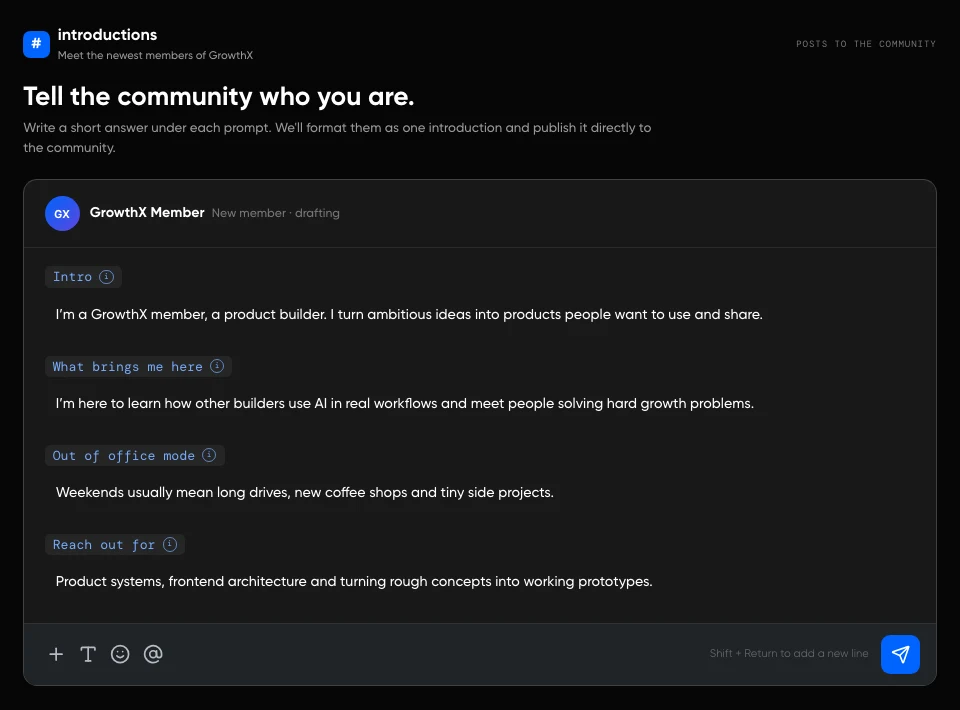
How do I write and publish my GrowthX introduction?

Open Write your introduction from the onboarding checklist on Home. Add a profile photo if the step asks for one, then write a short answer under each prompt.

  • Intro: your role, company or current work, and the useful part of the story that brought you here.
  • What brings me here: one thing you want to learn, solve or get better at.
  • Out of office mode: something real about your life outside work that gives people an easy conversation opener.
  • Reach out for: the subjects or situations where another member can ask for your help.

The GrowthX introduction composer with the Intro, What brings me here, Out of office mode and Reach out for prompts

Keep each answer specific and easy to reply to. Remove confidential employer, customer and personal information, and do not turn the introduction into a sales pitch. Select the send button to post when all four answers are complete. The finished post appears in #introductions. Your answers are not saved until you post. If you need to leave, copy them first, then use the same checklist step to come back.

How do I confirm what I bought and when access ends?

Open Settings → Membership (Subscription on mobile) in the account used for payment. Match the product name and access period there with your payment confirmation.

  • Membership: unlocks the membership benefits listed for its term.
  • Build Sprint: unlocks the programme and cohort benefits listed for that purchase.
  • Bundle: includes both products, but their access periods can differ.

If membership is awaiting review, use your application status for the next step. If a confirmed purchase is missing or locked, follow I paid but my purchased access is missing and do not pay again.

What should I do after the setup checklist is complete?

Turn the reason you joined into one completed action; do not browse every GrowthX surface.

  • Improve a skill: write down one current work question, open Learn, begin one relevant resource and note one idea you will test.
  • Learn from members: post one specific ask in Member Connect, with the problem, relevant context and what you have already tried.
  • Meet people: open Events, register for one event you can attend and confirm that your status is approved or registered before making plans.
  • Build a product: open your Build Sprint handbook and complete the next setup or milestone shown there.

Your setup is useful when your purchase is correct, the account checklist is complete and you have one active learning, community, event or programme commitment.

Why does setup say incomplete, or something I bought still look locked?

Treat incomplete setup and missing access as two separate checks; neither requires another payment.

  1. For incomplete setup: open Home and read the exact item in the onboarding checklist. Use its button to return to that step. If you already completed it, reopen Home once so the checklist can refresh.
  2. For locked access: open Settings → Membership (Subscription on mobile) and confirm that the affected membership or programme appears with the expected access period. If membership is awaiting review, check your application status.
  3. If the mismatch remains: send GrowthX support the product name, payment reference and date, affected page, exact checklist item or lock message, and a screenshot.

Tip

Say explicitly whether the purchase opens normally while only the checklist is wrong. That separates a stale setup status from missing product access.

Patience—you’re about to be impressed.